SMS opt-in workflow

How CircleUp collects SMS opt-in from managers and employees, end to end.

CircleUp uses SMS for two purposes: account verification when a manager signs up, and team-onboarding invitations sent at a manager’s request. Both flows display the SMS consent disclosure before any message is sent. This page walks through each screen with the registered carrier-approved disclosure text.

1. Manager signs up — phone entry

A new manager downloads CircleUp, taps Get started, and enters their phone number. The SMS consent disclosure is shown directly under the input, above the Continue button:
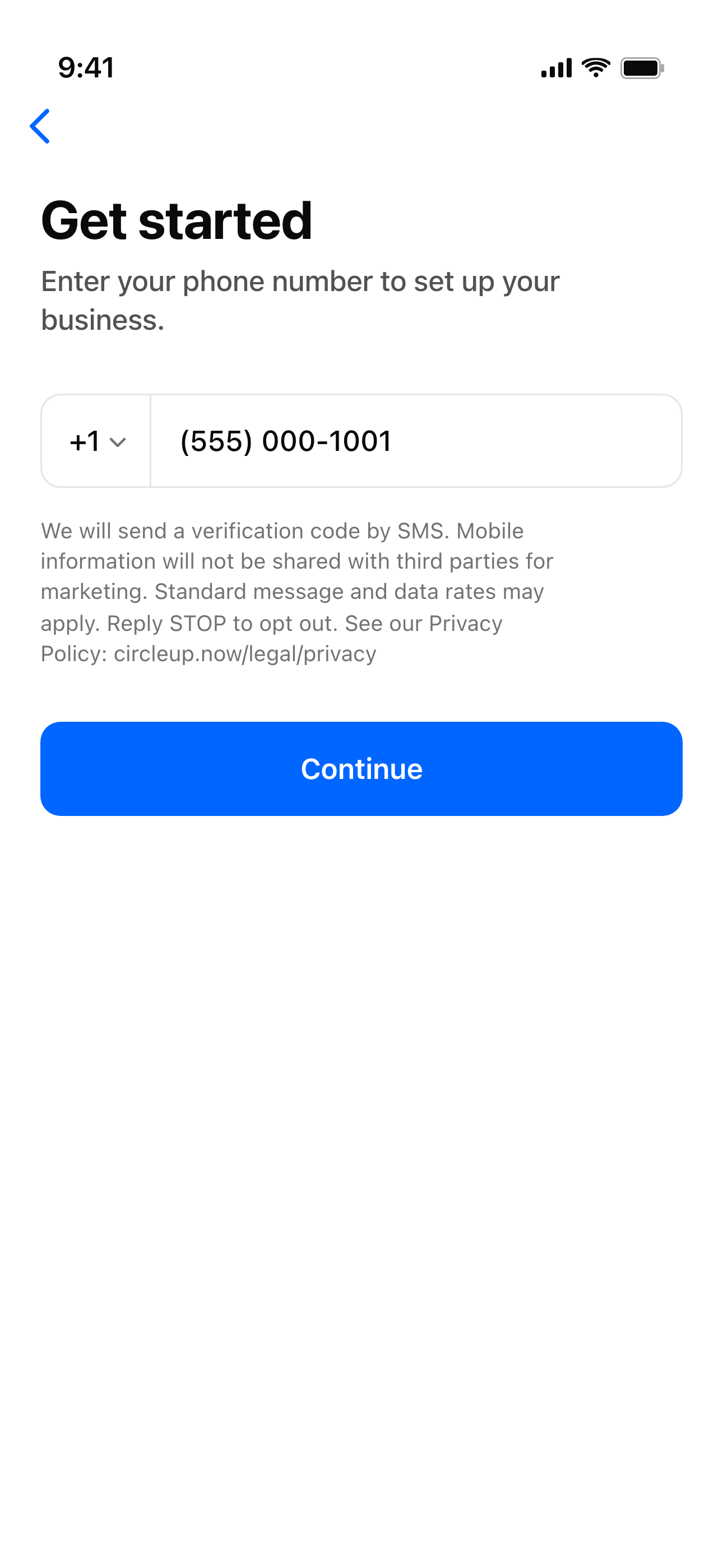
We will send a verification code by SMS. Mobile information will not be shared with third parties for marketing. Standard message and data rates may apply. Reply STOP to opt out. See our Privacy Policy: circleup.now/legal/privacy
CircleUp Get Started screen: phone number entry with the SMS consent disclosure visible above the Continue button.
Manager signup — phone entry screen with the SMS consent disclosure.

2. OTP delivery and entry

After the manager taps Continue, CircleUp sends a one-time verification code by SMS:

CircleUp: Your verification code is 123456. This code expires in 10 minutes. Don’t share this code. Reply STOP to opt out. Msg & data rates may apply.

The OTP is delivered via AWS End User Messaging. The manager enters the code on the OTP screen to complete signup:
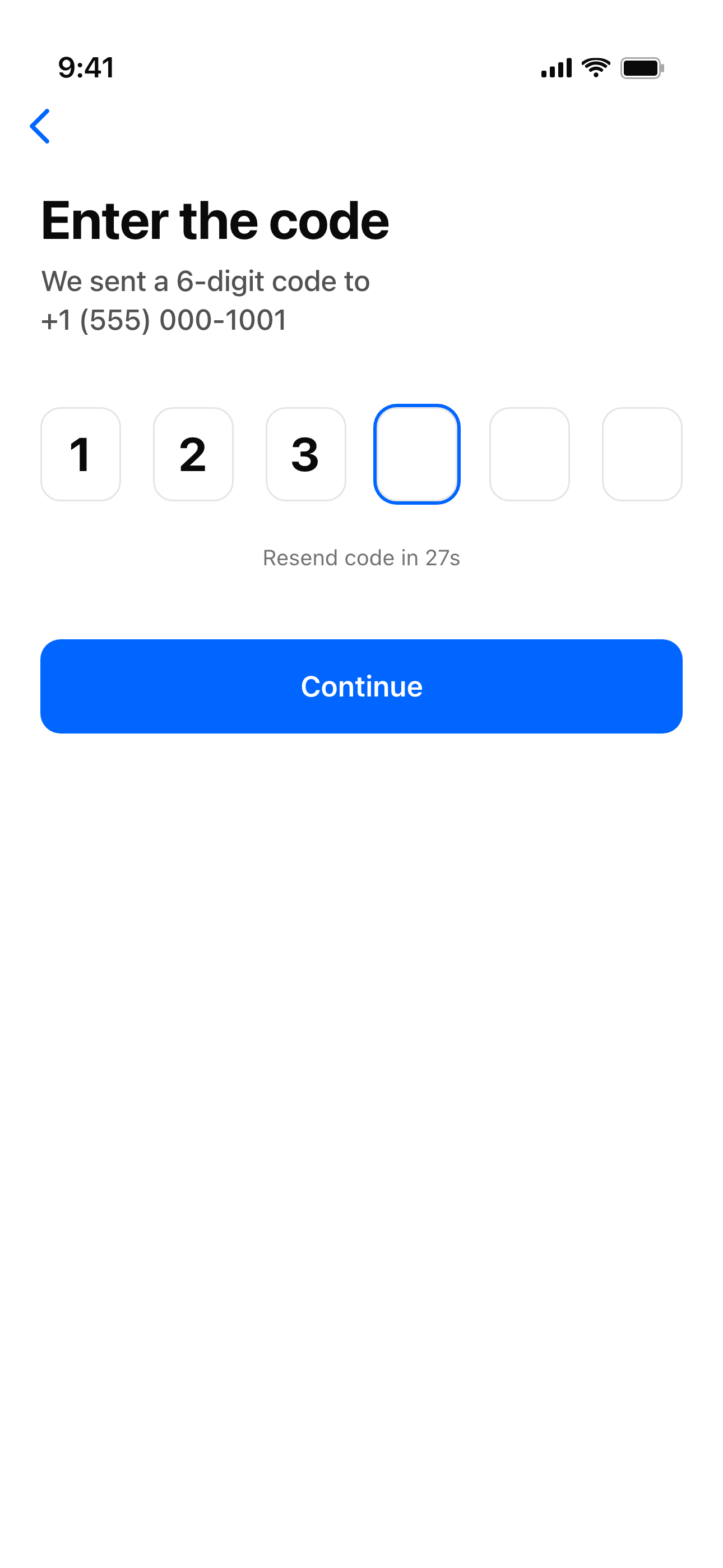
CircleUp OTP entry screen with a six-digit code input.
OTP entry screen.

3. Manager invites an employee

Once signed up, a manager can invite team members. On the invite form, the manager fills in the employee’s name, phone, and role. Above the Send invite button is the employer-attestation disclosure:

By inviting this employee, you confirm they are part of your team and have their consent to share their number with CircleUp. CircleUp will not share their number with third parties for marketing. See our Privacy Policy: circleup.now/legal/privacy

By tapping Send invite, the manager explicitly attests that the employee has consented to share their number with CircleUp. CircleUp then sends a single SMS invitation to the employee with a link to join the workspace.

CircleUp Invite an employee form with first name, last name, phone, and role fields, plus the employer-attestation disclosure above the Send invite button.
Team invite form with the employer-attestation disclosure.

Opt-out, help, and standard rates

Recipients can opt out of all CircleUp SMS at any time by replying STOP to any message. CircleUp’s SMS provider (AWS End User Messaging) maintains the opt-out list at the carrier level — once opted out, no further CircleUp messages reach that number until the recipient re-subscribes by replying START.

For help, reply HELP to any message or email support@circleup.now. Standard message and data rates may apply.

Related